Split PDF
Split a PDF file into multiple documents by page ranges
Drop your PDF here or click to browse
Supported format: PDF · Maximum file size: 100MB
Practice with sample PDFs
Download these fictional documents, upload them in the tool above, and compare your result with the reference below. The samples contain no personal information.
1. Download the input files
Combined document: 3 pages, with REPORT PAGE 1 and REPORT PAGE 2 followed by APPENDIX PAGE 1.
Input PDF: merged.pdf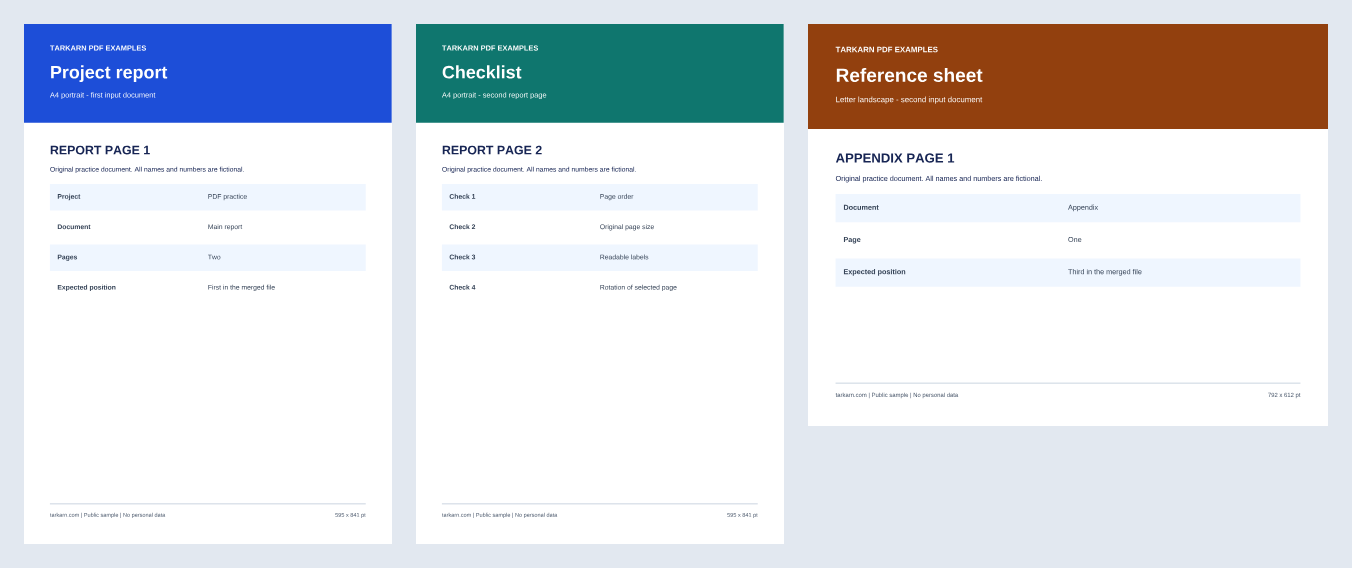
2. Try the example
- Upload merged.pdf using the file picker above.
- Select By Range, enter 2-3, and select Split PDF.
- Download the single result PDF and check that it contains the original pages 2 and 3.
3. Compare the expected result
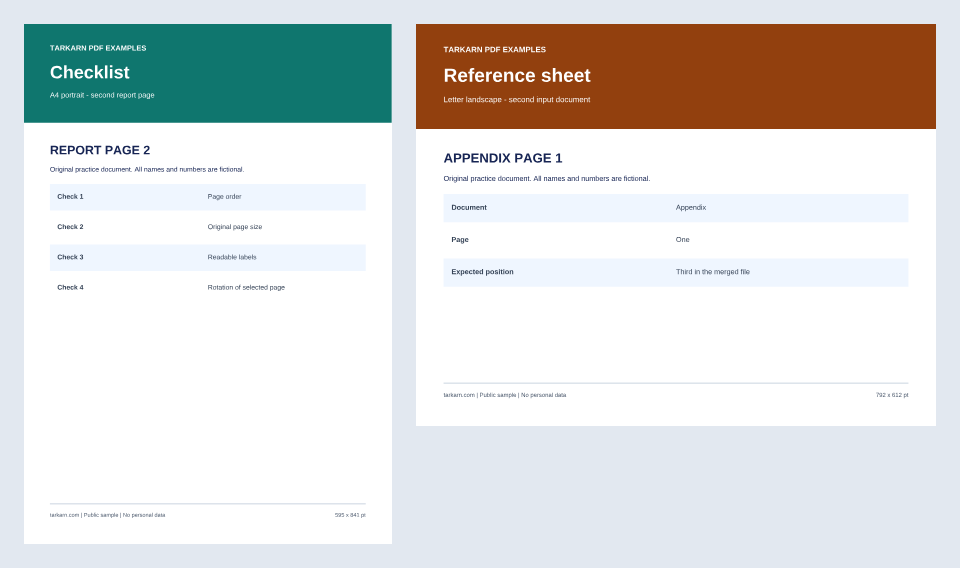
2 pages in order: REPORT PAGE 2 → APPENDIX PAGE 1. The report page remains A4 portrait and the appendix remains Letter landscape. No page is rotated.
A4 portrait: 210 × 297 mm. Letter landscape: 11 × 8.5 in. Compare page size and orientation; the saved file size in bytes can differ.
Read the worked example for the settings, checks, and limitations. The article includes English and Korean text.
Read the pages 2–3 splitting exampleWhat is Split PDF?
Split PDF copies selected pages into new documents. You can split each page, choose ranges, or group every N pages. In the published example, entering 2-3 in By Range produces one PDF containing the second report page and the appendix, in that order and with their original page sizes. The check uses a small, unencrypted text PDF. Processing happens in your browser without sending the selected file to the service server. Keep the original and check the downloaded result in the PDF reader you use before sharing.
How to Use
- Upload the PDF file you want to split.
- Choose the split method (by page, by range, every N pages).
- Click the 'Split' button.
- Download the split PDFs.
Tips & Best Practices
- Use the range-based split mode for maximum control. You can specify non-contiguous ranges like 1-3, 7-9, 15-20 to create exactly the documents you need.
- The every-N-pages mode is perfect for splitting large scanned documents into uniform sections, such as separating a book into chapters of equal length.
- Preview your PDF page count before splitting to ensure your range inputs are within the valid page numbers.
- For duplex-scanned documents, try splitting every 2 pages to separate individual sheets into their own files.
- After splitting, you can use the Merge PDF tool to recombine specific split files if you need a different arrangement.
Use Cases
Chapter Separation
Split an ebook or manual into individual chapters for easier reading and distribution.
Form Processing
Separate a batch-scanned PDF of multiple forms into individual documents for separate filing.
Presentation Segments
Divide a large presentation PDF into topic-specific sections for targeted sharing with different teams.
Legal Document Management
Split lengthy contracts or legal filings into separate sections for review by different parties.
FAQ
How do I split a PDF?
Upload your PDF, then choose a split method: by individual pages, by custom ranges, or every N pages.
Can I download each split file individually?
Yes, each split PDF has its own download button.
How does PDF splitting technically work?
The tool copies each selected page range into a new PDF. The sample uses 2-3 to check that the second report page and appendix appear in that order with their original sizes.
Are my files uploaded to a server?
The tool processes the selected PDF files in your browser without sending them to the service server. Keep the originals and check downloaded files before sharing. This does not guarantee the security of your device, downloads, or shared copies.
Can I split a password-protected PDF?
Password-protected PDFs are not supported. Remove protection with a trusted desktop application before using this tool.
When is 'split every N pages' useful?
For example, it is convenient for dividing a 100-page document into 10-page sections, or separating a duplex-scanned document into 2-page units.
Can I split a PDF into specific page ranges?
Yes, use the range-based split mode and enter your desired ranges separated by commas, for example 1-5, 6-10, 11-15. Each range creates a separate PDF file.
What happens to the original PDF after splitting?
The tool creates new files from selected pages and does not overwrite the file you selected. Keep the original so you can compare it with the downloaded results.
Can I split a very large PDF file?
The file picker accepts PDFs up to 100MB, but available browser memory and document complexity affect processing. The published example uses a small PDF and does not verify completion for large files.
Are forms, signatures, bookmarks, annotations, and accessibility tags preserved?
Their preservation has not been verified. The published example checks page labels, order, sizes, and rotation for a small, unencrypted text PDF. Keep the original and inspect the downloaded pages and any features you need in your PDF reader before sharing.
Can I split a scanned PDF?
The tool copies pages rather than recognizing the text of a scan. The published example uses text pages; scanned-document quality and compatibility have not been verified.
How do I download all split files at once?
Each split file has its own download button. You can download them one by one after the splitting process completes.